What's New: Honest File-Size Targets, an All-Tools Page and Clearer Privacy Labels
The October 2026 update: target-size compression that always shows the real result, smarter downscaling, a page listing every tool, on-device vs. AI labels, bulk output details and clearer HEIC messages.
This update is about trust: every tool now tells you exactly what it did, where your image was processed, and what to try when something can't be done. Here's what changed and how to use it.
Target-size compression shows the real result
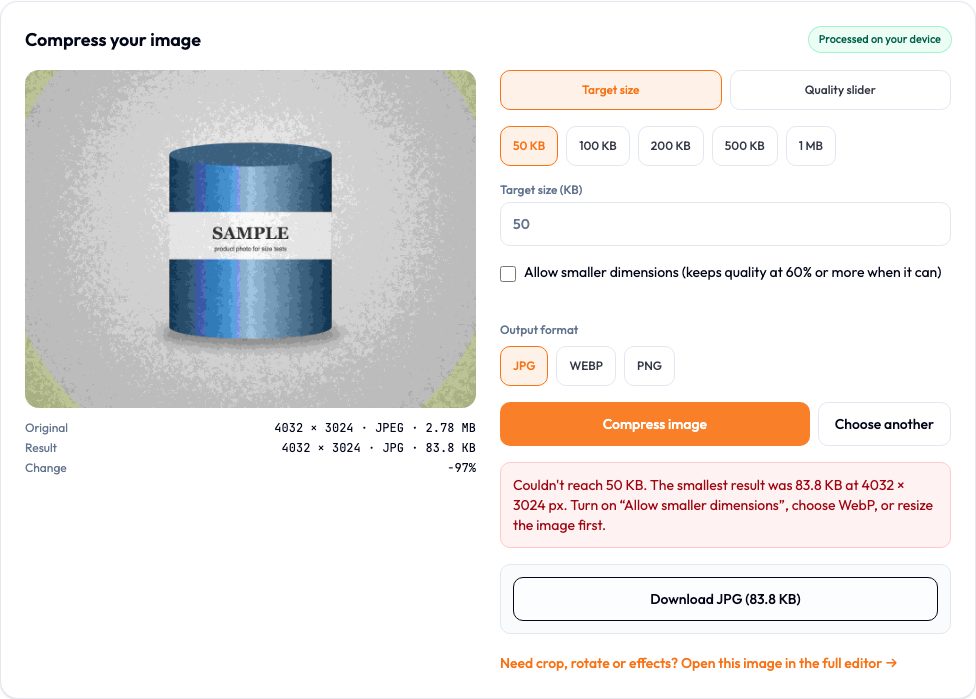
When you ask for a file under 50 KB, 100 KB or any other size, the result line now shows the final size, dimensions and quality. If the target can't be reached, you get a clear message with the smallest size that was possible, instead of a file that quietly goes over the limit.
Smarter "Allow smaller dimensions"
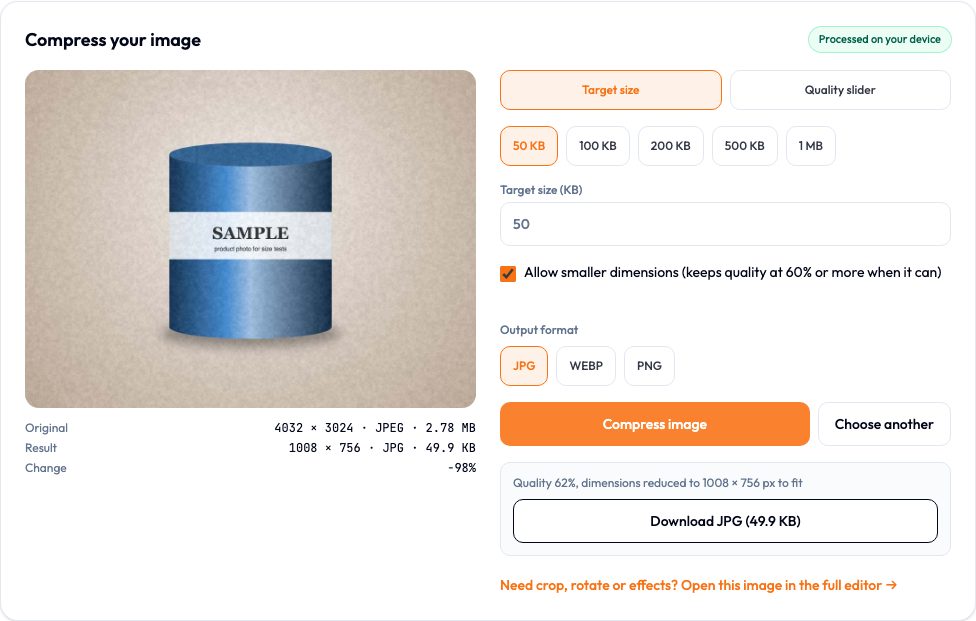
Previously, allowing smaller dimensions could still produce a full-size image at very low quality. Now the tool prefers a smaller image at 60% quality or better. In our test, a 4032 × 3024 photo came out at 1008 × 756, 49.9 KB, quality 62%, which looks far cleaner than a blocky full-size file.
The full walkthrough, with 200 KB and 500 KB results and the resize-first approach, is in Compress Images to a Specific File Size.
One page with every tool
The new All Tools page lists every working tool, grouped by task: resize, compress, convert, crop, edit, bulk, AI and generators. Each tool is marked "On your device" or "AI service", so you know before you start whether your image will be uploaded.
Clear on-device vs. AI labels
- Resize, compress, convert, crop, rotate, bulk processing and the Photo Editor run in your browser. Your image isn't uploaded to our servers.
- AI tools (background removal, upscaling, enhancement, face swap, object removal and AI thumbnails) send the image to an AI provider through our server. Each one says so on the page, and the Photo Editor's AI panel now does too.
- Image, logo and AI thumbnail generators send your text prompt to an AI service.
Our privacy policy was rewritten to match exactly how each tool works.
Bulk processing shows what you'll get
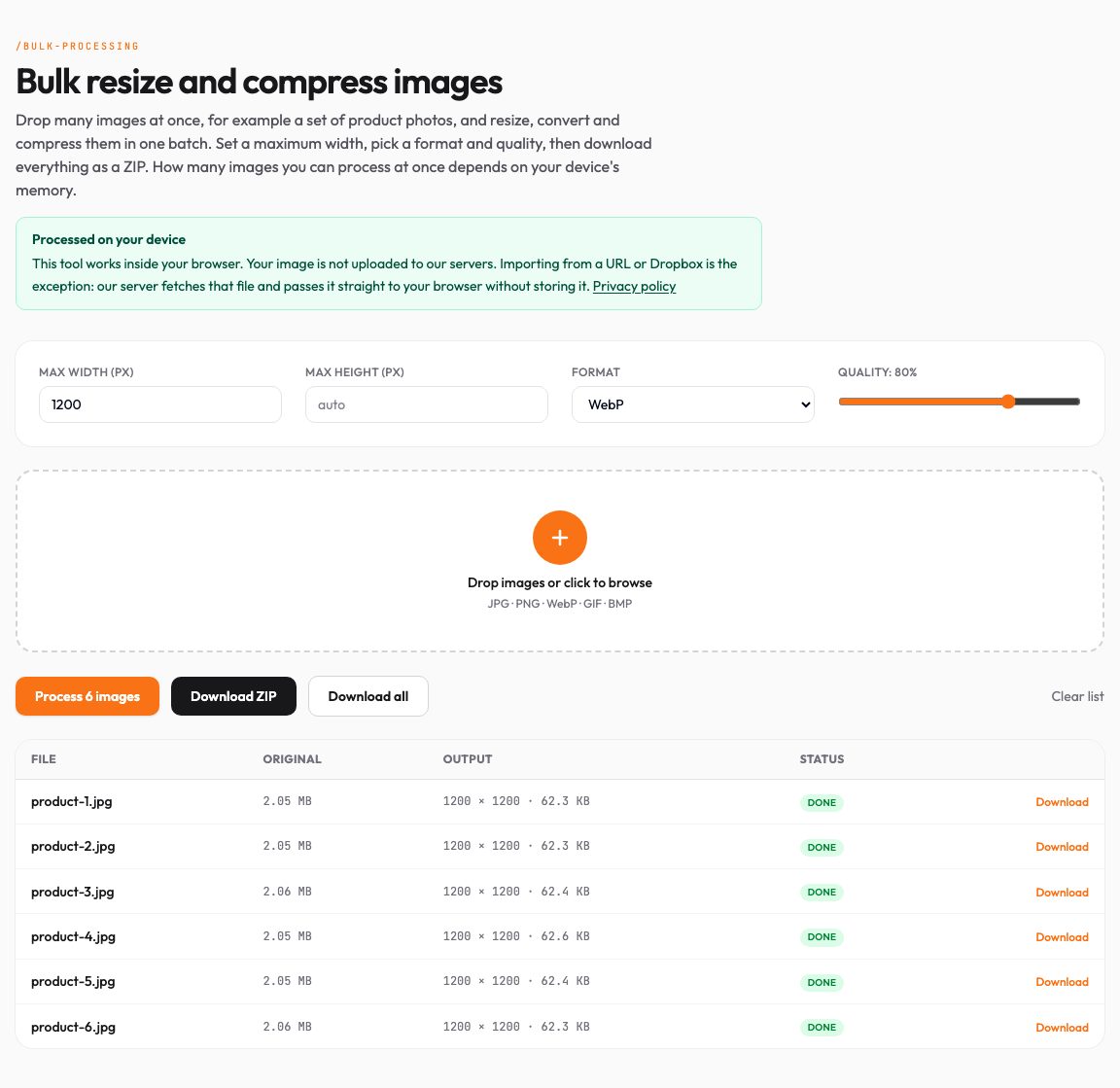
Each row in the bulk table now shows the output dimensions and file size, not just "done", and failed files are counted separately so nothing silently goes missing from your ZIP.
Clearer HEIC messages
iPhone HEIC photos only open in browsers that can decode them, such as Safari. In Chrome, Edge or Firefox the tools now explain that and suggest what to do, instead of failing with a generic error. See How to Convert HEIC to JPG for the options.
Faster first load
Pages now show text before web fonts finish downloading, and the Dropbox and Google Drive import scripts only load when you open the import menu. On slow connections the page becomes readable sooner.
Rewritten guides with real numbers
Our resize, file-size, HEIC and bulk guides now walk through real runs of the tools, with screenshots and the exact dimensions and file sizes they produced. We also corrected older posts that described features we don't have.
Browse all tools →Try it now
Ready to put this into practice? This tool runs in your browser, so your image isn't uploaded. No signup.
Open the tool →